

Prerequisite: Access to Claude Cowork plugins requires a paid Claude account (Pro, Team, or Enterprise plan).
Step-by-Step Installation
Follow these steps to connect thestockinsights-in MCP server and authorize it with your stockinsights.ai account.
1
Add the Marketplace Repository
- Click on the Customize button in the left navbar.
- In the dialog box, go to the bottom and click on Plugins.
- You will see a + (plus) icon there; click it to add a marketplace.
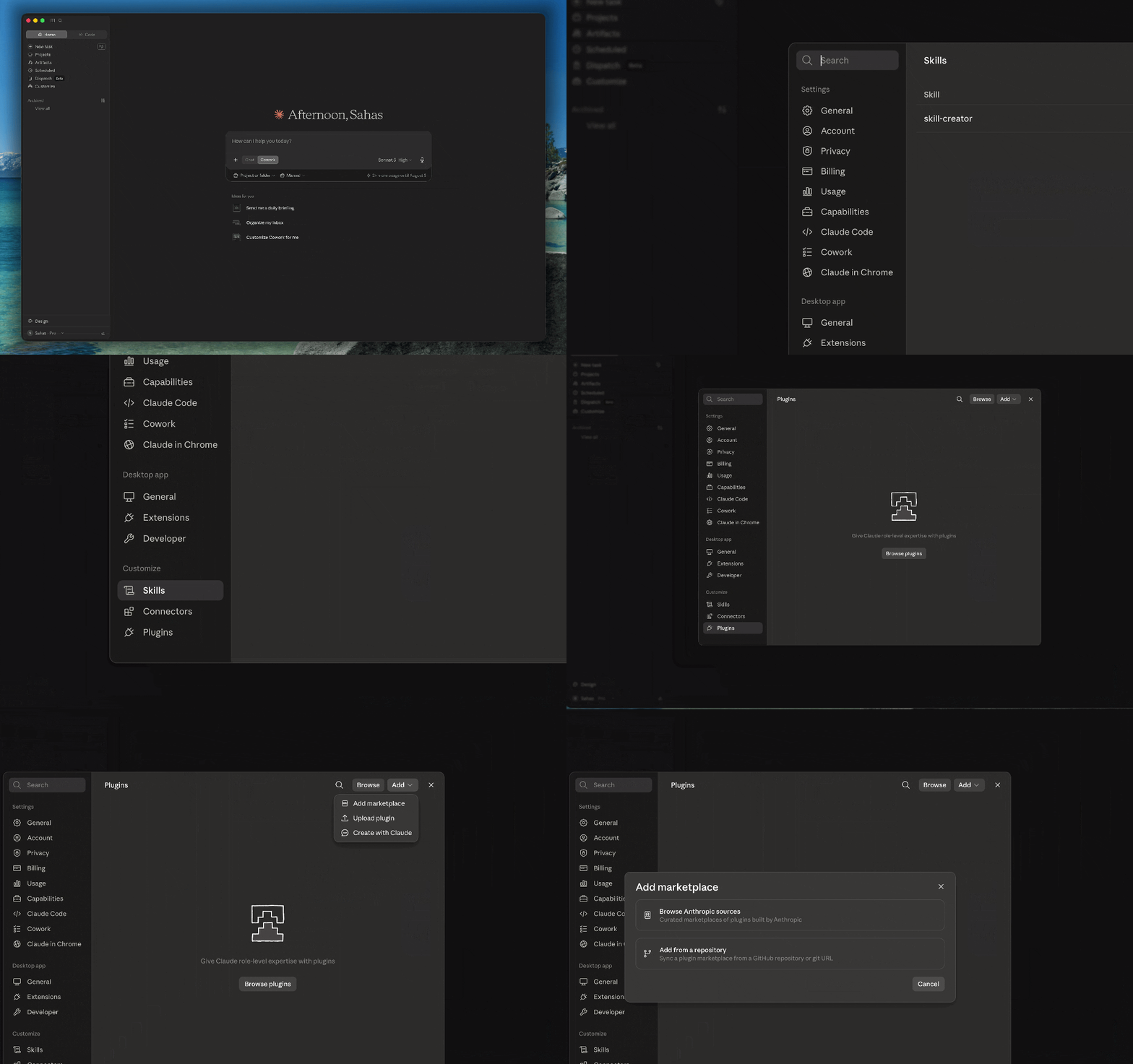
Navigating to the Add Marketplace option in Claude Customize menu
- Select Add from a repository and enter the stockinsights plugins repository URL:
- Click Add to sync the marketplace.
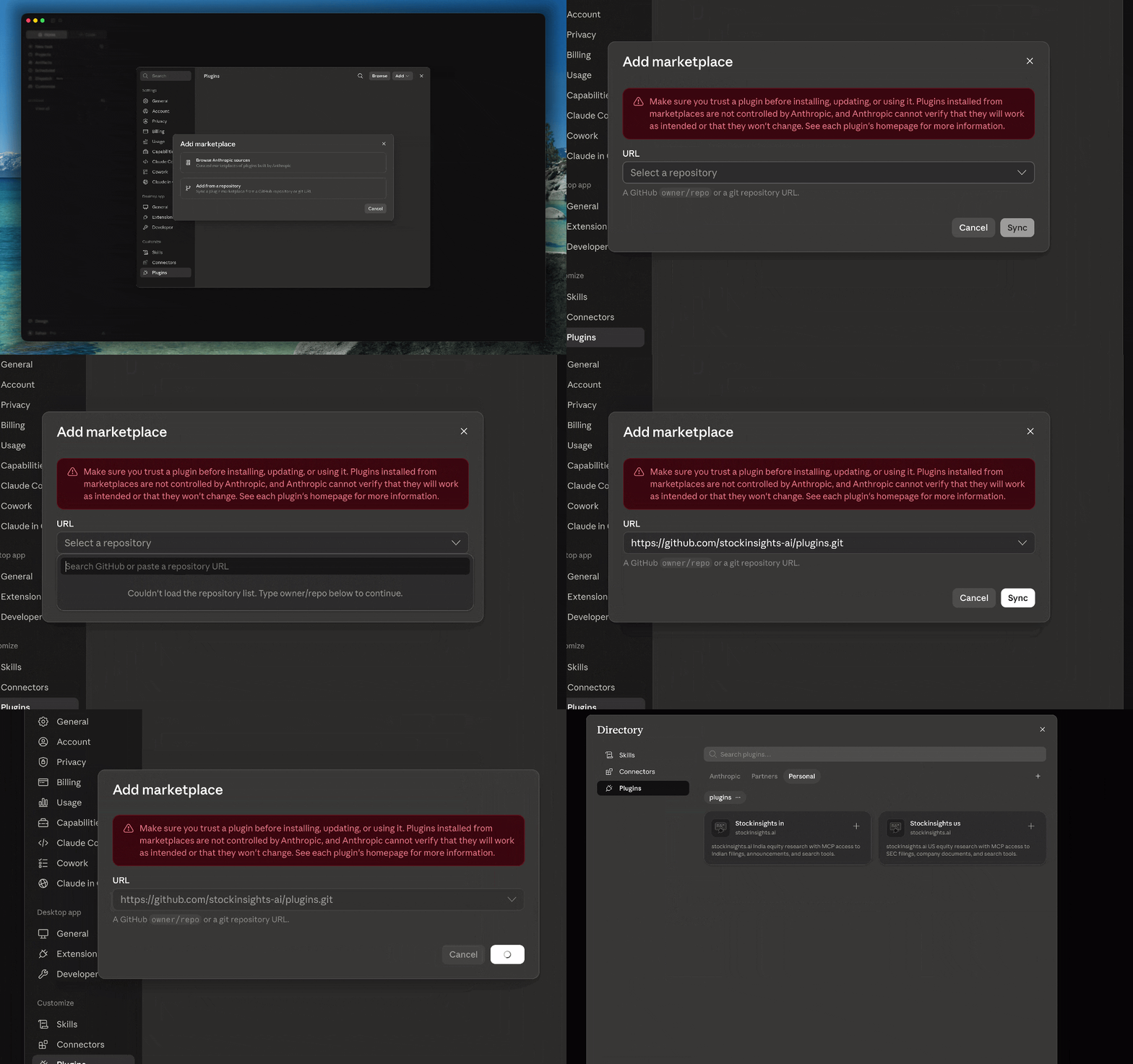
Adding the custom marketplace repository in Claude Customize menu
2
Select the stockinsights-in Plugin
- Once the repository is synchronized, browse the list of available plugins in the newly added marketplace.
- Locate stockinsights-in.
- Click Install or select it to proceed.
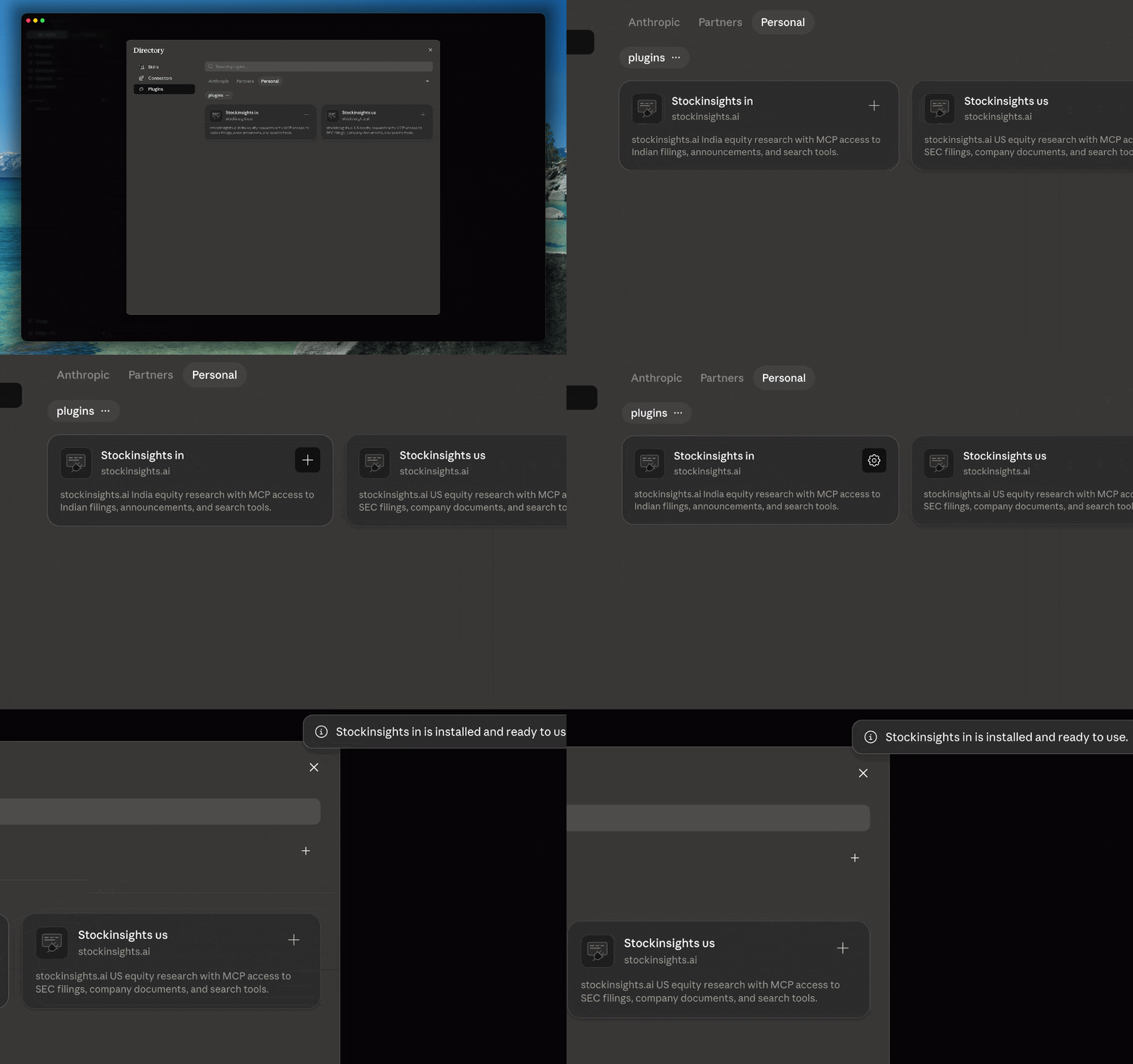
Selecting and installing the stockinsights-in plugin
3
Access Connector Settings
- Click on Manage plugin for the newly installed
stockinsights-inplugin. - Select the Connectors tab (or navigate directly to Customize > Connectors in the sidebar).
4
Connect the MCP Server
- Find the stockinsights-in MCP server in the list of connectors.
- Click the Connect button next to it.
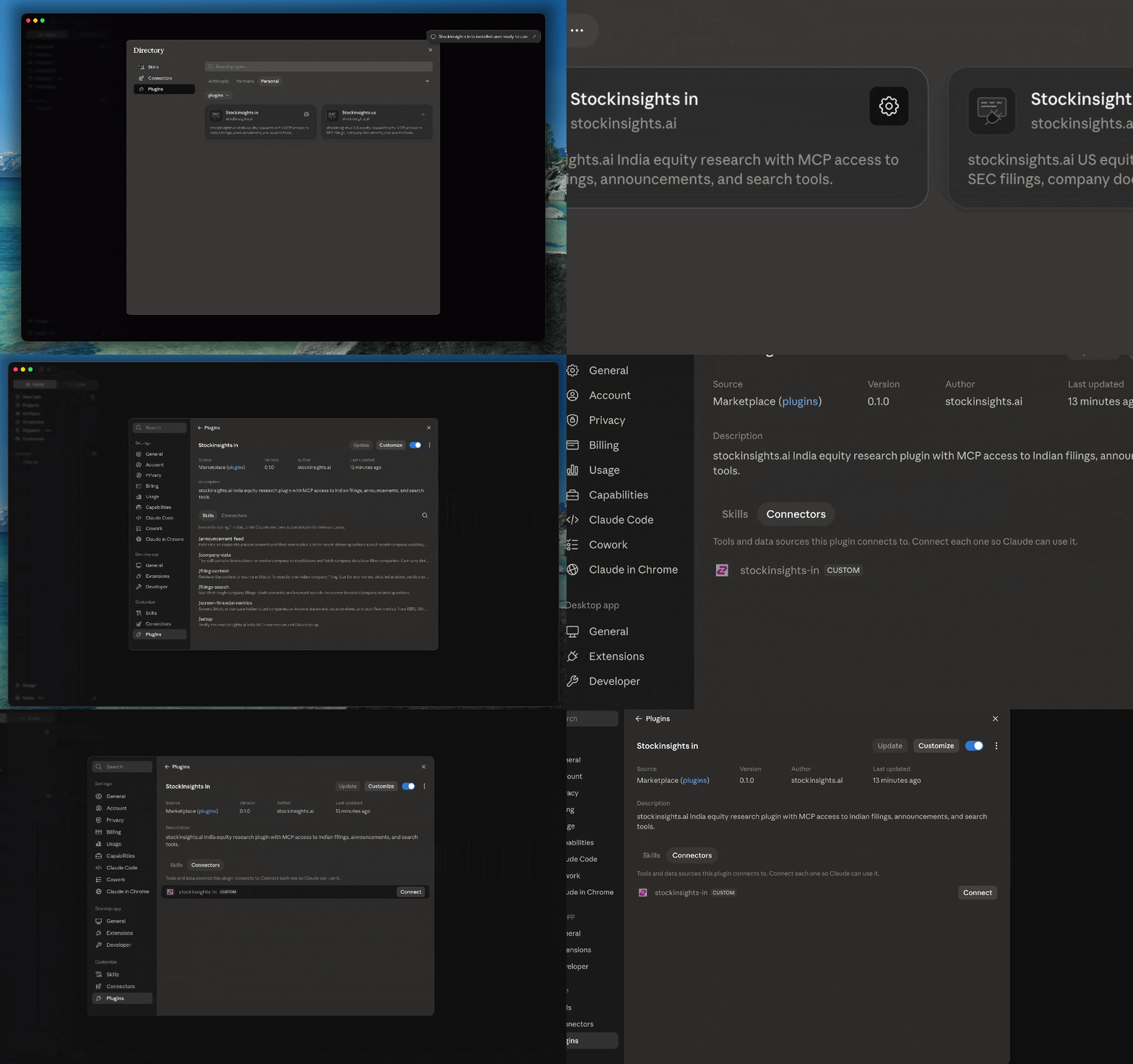
Connecting the stockinsights-in connector
5
Sign In & Authorize stockinsights.ai
- You will be redirected to the stockinsights.ai authentication portal.
- Log in to your existing account, or Sign up if you don’t have one yet.
- Review the permissions requested by the Claude Cowork app.
- Click Authorize to link your account.
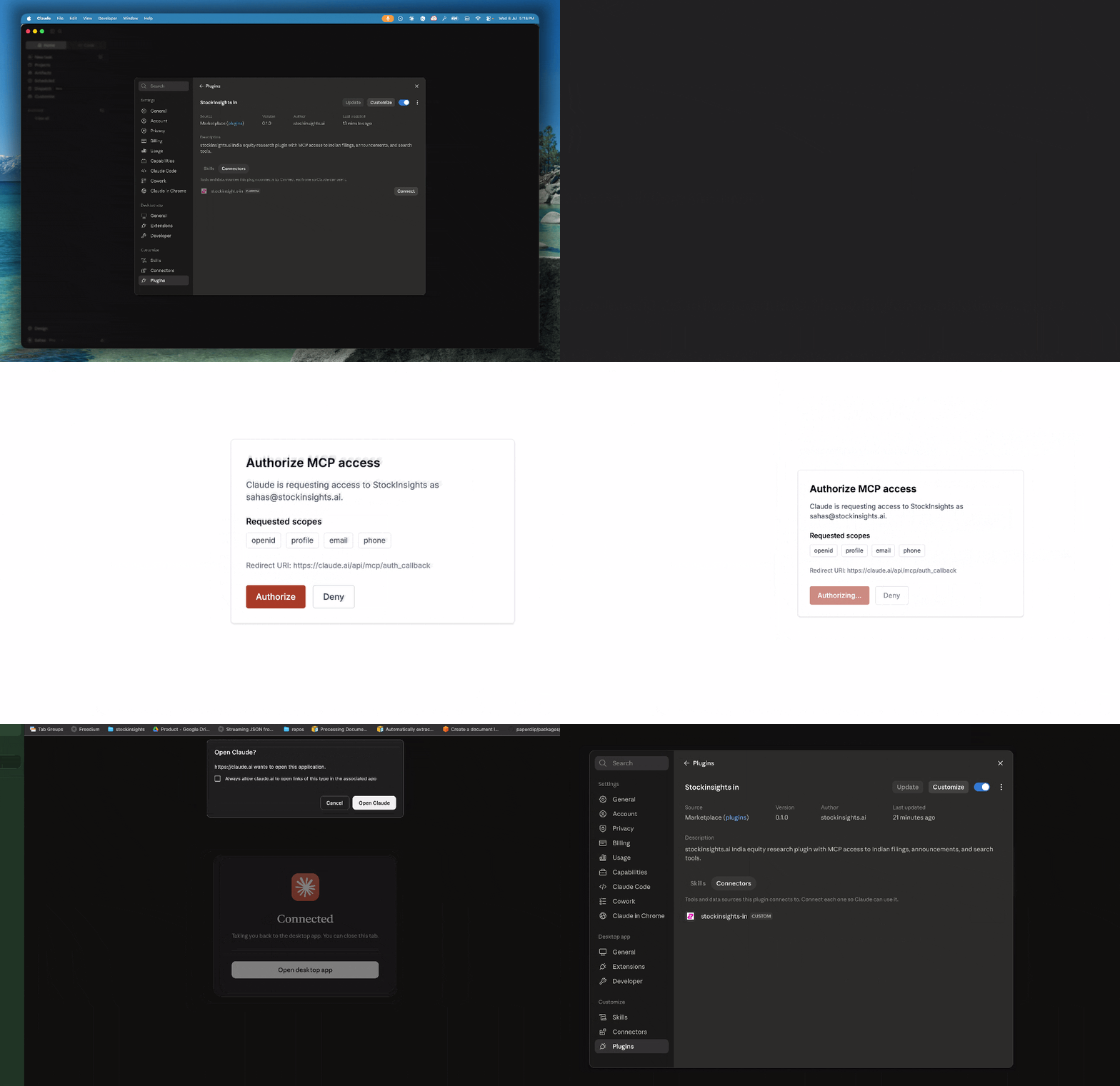
Authorizing the connection in stockinsights.ai portal
6
Confirm Status
- You will be redirected back to the Claude app.
- Verify that the stockinsights-in MCP server connector status updates to Connected without any errors.
7
Start Using the Plugin Skills
You’re ready! Start a new chat or a Cowork task. You can trigger the plugin skills by typing
/ or clicking the + button in the chat box to select a skill, or simply ask Claude in plain text.