> ## Documentation Index
> Fetch the complete documentation index at: https://docs.stockinsights.ai/llms.txt
> Use this file to discover all available pages before exploring further.
# Claude Cowork Setup
> Learn how to install and connect the stockinsights-in plugin on the Claude Cowork app to fetch Indian market data.
The **Claude Cowork** application supports plugins that allow you to use specialized skills and connectors directly in your workspace. This guide walks you through installing the **stockinsights-in** plugin to bring Indian equities research tools into your Claude Cowork workspace.
**Prerequisite**: Access to Claude Cowork plugins requires a paid Claude account (Pro, Team, or Enterprise plan).
***
## Step-by-Step Installation
Follow these steps to connect the `stockinsights-in` MCP server and authorize it with your stockinsights.ai account.
1. Click on the **Customize** button in the left navbar.
2. In the dialog box, go to the bottom and click on **Plugins**.
3. You will see a **+** (plus) icon there; click it to add a marketplace.
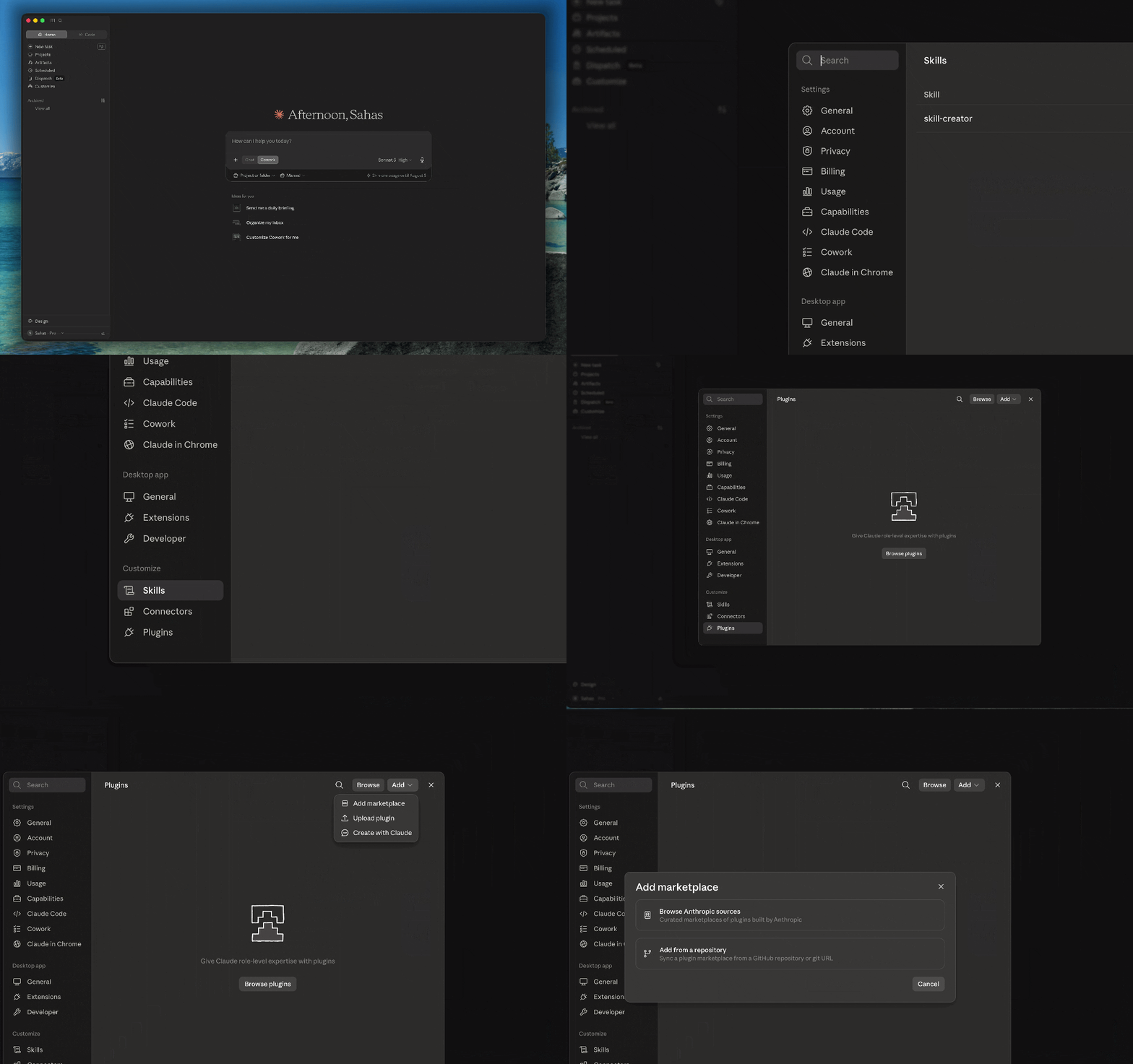 4. Select **Add from a repository** and enter the stockinsights plugins repository URL:
```text theme={null}
github.com/stockinsights-ai/plugins
```
5. Click **Add** to sync the marketplace.
4. Select **Add from a repository** and enter the stockinsights plugins repository URL:
```text theme={null}
github.com/stockinsights-ai/plugins
```
5. Click **Add** to sync the marketplace.
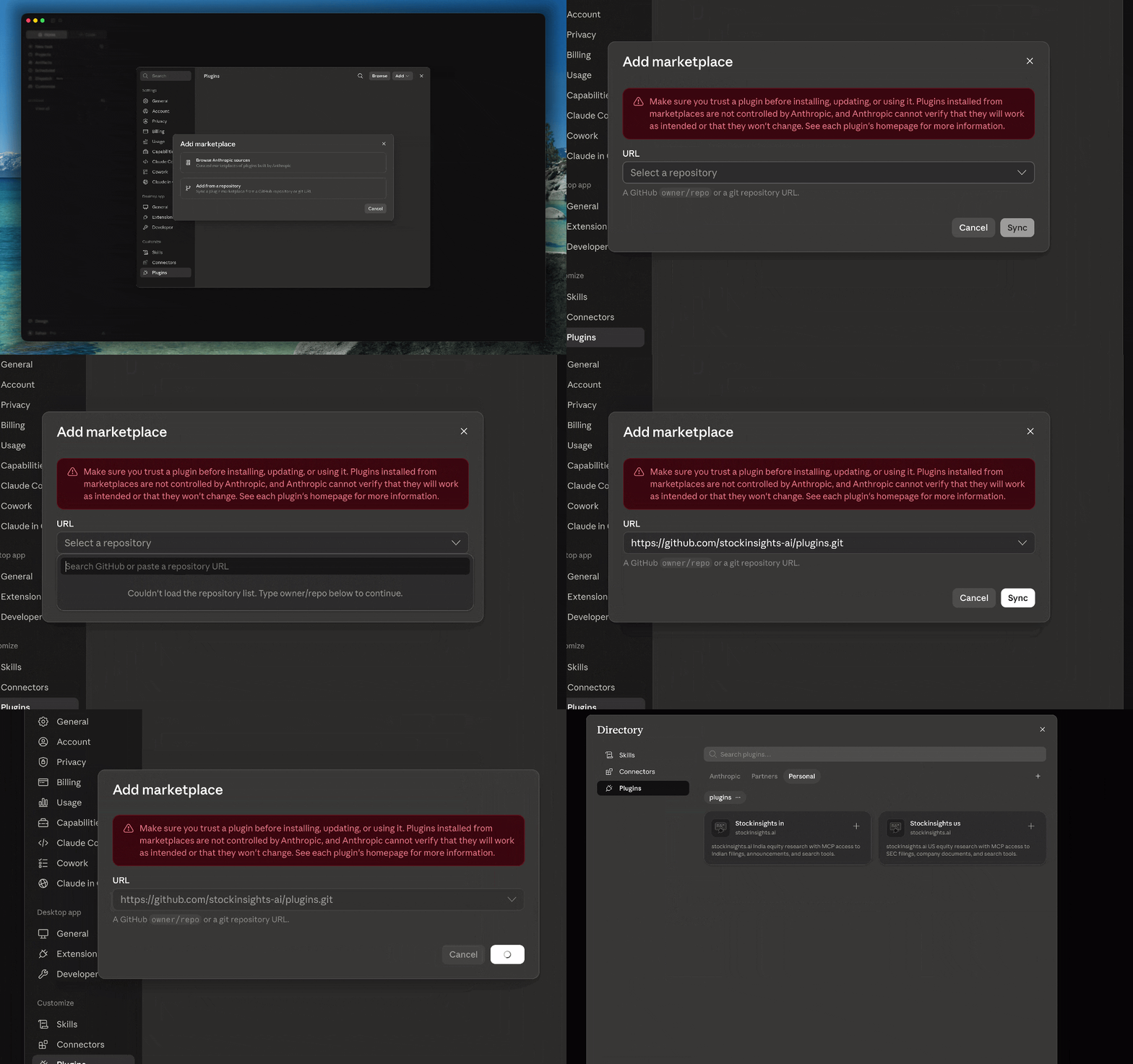 1. Once the repository is synchronized, browse the list of available plugins in the newly added marketplace.
2. Locate **stockinsights-in**.
3. Click **Install** or select it to proceed.
1. Once the repository is synchronized, browse the list of available plugins in the newly added marketplace.
2. Locate **stockinsights-in**.
3. Click **Install** or select it to proceed.
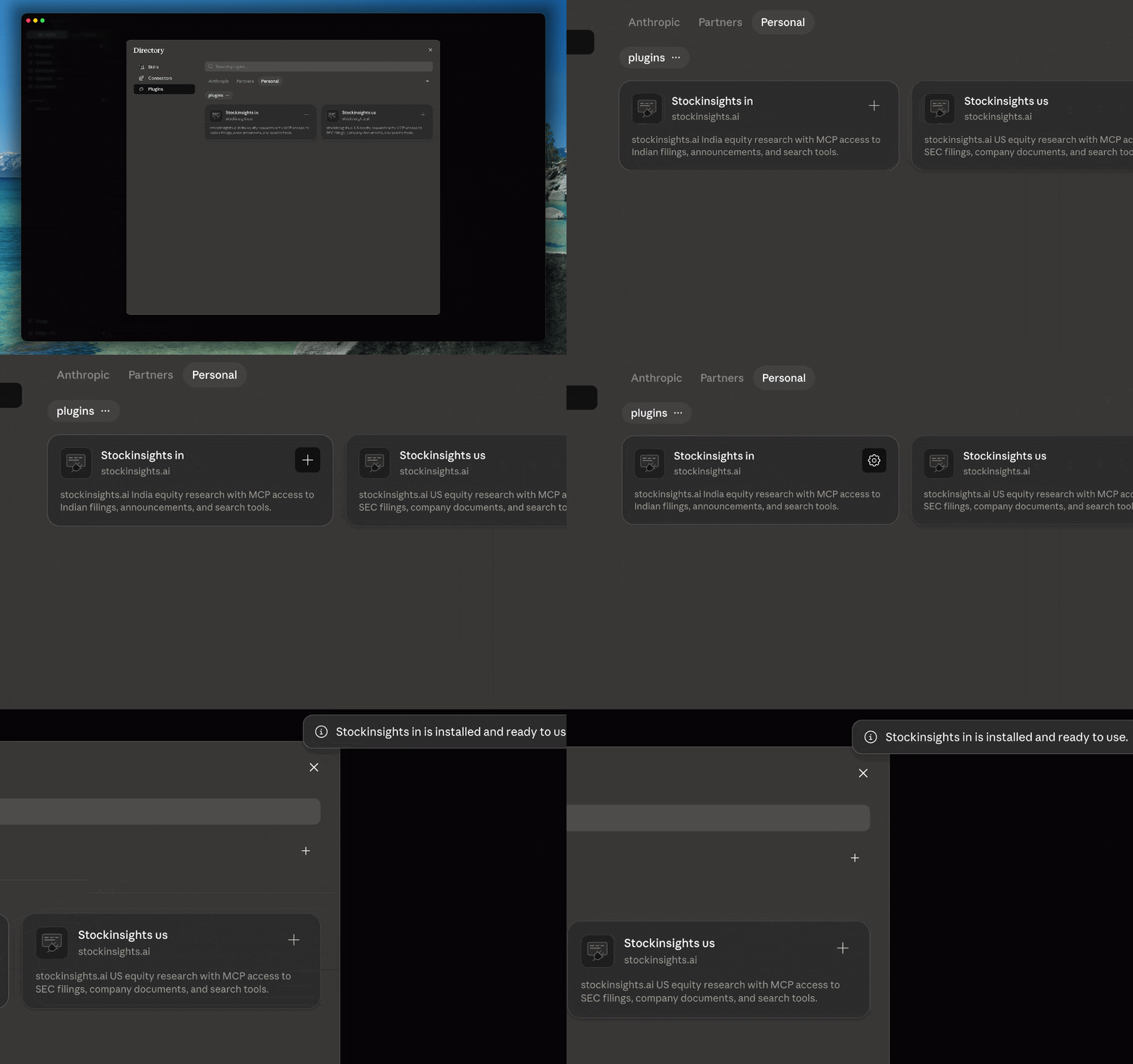 1. Click on **Manage plugin** for the newly installed `stockinsights-in` plugin.
2. Select the **Connectors** tab (or navigate directly to **Customize** > **Connectors** in the sidebar).
1. Find the **stockinsights-in** MCP server in the list of connectors.
2. Click the **Connect** button next to it.
1. Click on **Manage plugin** for the newly installed `stockinsights-in` plugin.
2. Select the **Connectors** tab (or navigate directly to **Customize** > **Connectors** in the sidebar).
1. Find the **stockinsights-in** MCP server in the list of connectors.
2. Click the **Connect** button next to it.
 1. You will be redirected to the stockinsights.ai authentication portal.
2. **Log in** to your existing account, or **Sign up** if you don't have one yet.
3. Review the permissions requested by the Claude Cowork app.
4. Click **Authorize** to link your account.
1. You will be redirected to the stockinsights.ai authentication portal.
2. **Log in** to your existing account, or **Sign up** if you don't have one yet.
3. Review the permissions requested by the Claude Cowork app.
4. Click **Authorize** to link your account.
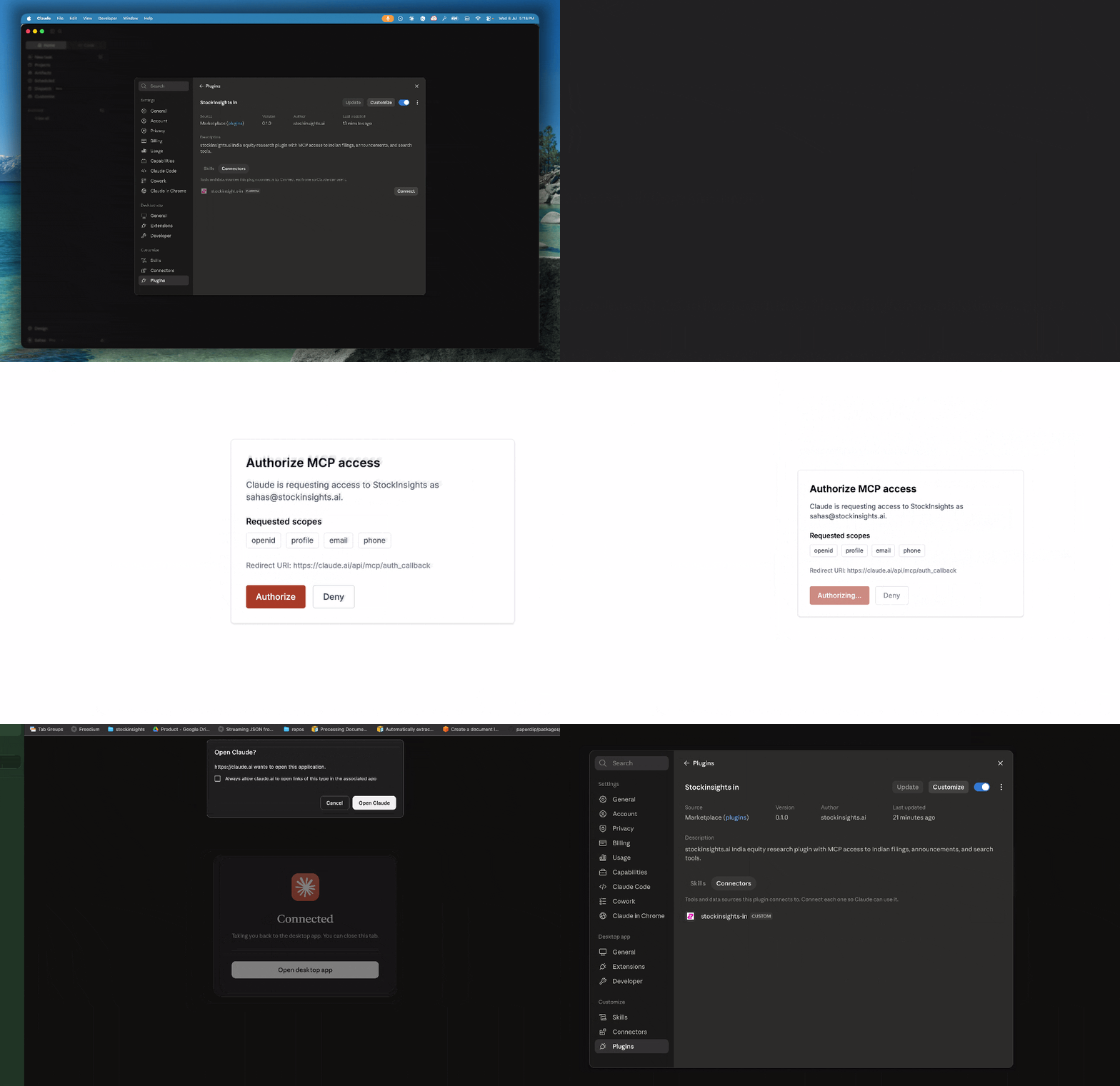 1. You will be redirected back to the Claude app.
2. Verify that the **stockinsights-in** MCP server connector status updates to **Connected** without any errors.
You're ready! Start a new chat or a Cowork task. You can trigger the plugin skills by typing `/` or clicking the `+` button in the chat box to select a skill, or simply ask Claude in plain text.
***
## Sample Queries to Try
Once connected, you can ask Claude questions about Indian companies, and it will automatically invoke the plugin tools behind the scenes to fetch accurate answers. Try these prompts:
```text 1. Filings Search theme={null}
"Find the latest corporate filings for Reliance Industries and list the main key sections."
```
```text 2. Earnings Call Analysis theme={null}
"Summarize the key growth outlook and capital expenditure comments from Tata Motors' last earnings transcript."
```
```text 3. Corporate Action Track theme={null}
"Check if there are any recent board meetings or announcements regarding dividend declarations for Infosys."
```
If you run into any issues during authorization, check that your browser is not blocking popups from `stockinsights.ai` or `claude.ai`.
1. You will be redirected back to the Claude app.
2. Verify that the **stockinsights-in** MCP server connector status updates to **Connected** without any errors.
You're ready! Start a new chat or a Cowork task. You can trigger the plugin skills by typing `/` or clicking the `+` button in the chat box to select a skill, or simply ask Claude in plain text.
***
## Sample Queries to Try
Once connected, you can ask Claude questions about Indian companies, and it will automatically invoke the plugin tools behind the scenes to fetch accurate answers. Try these prompts:
```text 1. Filings Search theme={null}
"Find the latest corporate filings for Reliance Industries and list the main key sections."
```
```text 2. Earnings Call Analysis theme={null}
"Summarize the key growth outlook and capital expenditure comments from Tata Motors' last earnings transcript."
```
```text 3. Corporate Action Track theme={null}
"Check if there are any recent board meetings or announcements regarding dividend declarations for Infosys."
```
If you run into any issues during authorization, check that your browser is not blocking popups from `stockinsights.ai` or `claude.ai`.